

Summary (executive overview)
- You can change your Gmail signature on desktop in Settings → See all settings → General → Signature, with options for images, links, and multiple signatures.
- On Android and iOS, edit a per-device “Mobile signature” in the app; if you leave it blank, Gmail now reuses your web (desktop) signature on mobile.
- You can set default signatures for new emails vs. replies/forwards and quickly switch signatures while composing.
- Images/logos can be inserted directly in the desktop signature editor (they count toward the 10,000-character limit).
Knowing how to change signature in Gmail saves time and keeps emails consistent across devices. Below, you’ll find clean, verified steps for desktop (web), Android, and iOS, plus tips for images, links, and managing multiple signatures for different contexts (sales vs. support, personal vs. side-gig). All UI paths are drawn from Google’s official help pages and recent mobile updates.
How to change your Gmail signature on desktop (web)
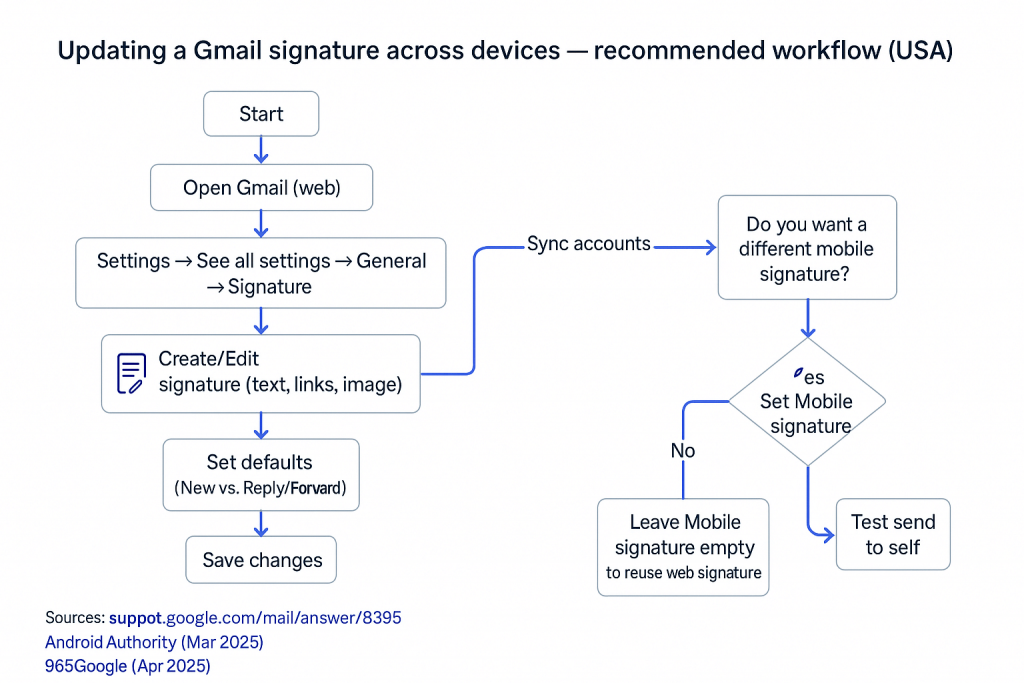
- Open Gmail (web).
- Click Settings (gear) → See all settings.
- In General → Signature, select an existing signature to edit or click Create new to add one.
- Use the editor to type text, add links, or insert an image/logo (Upload, Drive, or URL).
- Under Signature defaults, choose which signature applies to New emails and to Replies/forwards (they can differ).
- Scroll down and click Save changes.
Notes & limits
- Gmail signatures can be up to 10,000 characters; images count toward this limit. If you get an error, resize the image.
- You can keep several signatures and switch between them while composing.
How to change your Gmail signature on Android
- Open the Gmail app.
- Tap Menu (☰) → Settings → choose your account.
- Tap Mobile signature to edit or clear it.
Tip (2025 update): If you don’t set a mobile signature, Gmail on Android now uses your web (desktop) signature automatically—including formatting and images you configured on the web. This is rolling out broadly in 2025.
How to change your Gmail signature on iPhone & iPad
- Open the Gmail app.
- Tap Menu (☰) → Settings → choose your account.
- Tap Signature settings to edit or clear it.
Tip (2025 update): As on Android, if the mobile signature is empty, the iOS Gmail app can reuse your web signature.
Manage multiple signatures (work, personal, support)
- On desktop, create more than one signature and name each (e.g., “Work – full,” “Short reply”). Set defaults for new emails vs. replies; while composing, use the signature switcher to pick another.
- Admins (Google Workspace): see Google’s admin help for organization-wide guidelines and links to user-level setup.
Add images, links, and formatting (desktop)
- In General → Signature, place your cursor and click the Insert image icon to add a logo or headshot from Upload, Drive, or a public URL. Use the inline tools to resize. Add links (website, booking page, “Review & eSign”).
Troubleshooting and best practices
- Signature not showing on phone? Make sure the app has synced, and check Settings → Mobile signature. If it’s empty, the app may use your web signature; if it’s set, that mobile text overrides the web one.
- Images look too large/small? Resize in the editor or re-upload at the desired dimensions; remember the 10,000-character total limit includes images.
- Can I paste raw HTML? Gmail’s editor supports rich formatting but not arbitrary raw HTML code. Create the signature visually or paste styled content; advanced HTML isn’t officially supported.
- Material or UI differences on mobile? Google has updated mobile UIs during 2025; paths above remain consistent even as visuals change.
Quick reference: Keyboard-free checklist
- Desktop: Settings → See all settings → General → Signature → Save changes.
- Android: Menu → Settings → [Account] → Mobile signature (or leave blank to inherit web signature).
- iOS: Menu → Settings → [Account] → Signature settings (or leave blank to inherit web signature).
FAQs
- How do I change my Gmail signature without affecting replies?
Set Signature defaults separately for New emails and On reply/forward in the desktop settings. - Can I keep different signatures for different email addresses in the same Gmail?
Yes. In the desktop signature settings, create multiple signatures and set defaults per “Send mail as” address. You can also switch in-compose. - Will my mobile app show my desktop signature?
If the Mobile signature field is empty, modern versions of Gmail on Android and iOS can reuse your web signature. If you set a mobile signature, that text overrides the web one. - Can I paste HTML code for advanced layouts?
Gmail supports rich formatting in the editor but doesn’t allow arbitrary raw HTML code. Use the built-in tools or paste styled content; complex HTML may be stripped. - What’s the character limit for signatures?
Up to 10,000 characters including images; resize images if you hit errors.
Case studies (USA-focused scenarios)
1) Sales rep adding a “Review & eSign” CTA
A U.S. SaaS sales rep maintains two signatures: a long version for new outreach (name, role, phone, logo, compliance line, CTA link to a proposal for eSignature) and a short version for replies. Defaults: New = long, Replies = short. On mobile, the rep leaves Mobile signature empty to reuse the branded web signature, preserving the logo and CTA.
2) HR coordinator standardizing candidate communications
An HR coordinator sets a clean desktop signature with a link to a “Complete your forms” landing page for eSigning. They also create a compact “interview-day” signature (address, lobby instructions). On iOS, they keep mobile blank so the full web signature renders automatically when emailing candidates from the field.
Conclusion
Changing your Gmail signature is straightforward: configure it once on the web, set defaults smartly, and decide whether mobile should inherit the desktop version or use a short on-the-go variant. Use multiple signatures to match intent (intro vs. reply). Keep images lightweight and links purposeful—e.g., a concise “Review & eSign” call-to-action to guide recipients to your documents. With these steps, you’ll keep branding consistent and reduce friction for anyone who needs to read, review, or sign what you send.
Sources
- Google Help — Create a Gmail signature (desktop steps, limits, images, multiple signatures), accessed Oct 2025. Google Help
- Google Help — Create a Gmail signature (Android / iOS app paths), accessed Oct 2025. Google Help
- AndroidAuthority — Gmail app now reuses your web signature on Android (Mar 2025). Android Authority
- 9to5Google — Gmail for Android & iOS can reuse your web signature (Apr 2025). 9to5Google
- AndroidPolice — Gmail is syncing your desktop signature to mobile (Apr 2025). Android Police
- Google Help Community — No raw HTML injection; rich formatting only (explainer). Google Help
- The Verge — Recent Gmail mobile UI updates in 2025 (context). The Verge
- Summary (executive overview)
- How to change your Gmail signature on desktop (web)
- How to change your Gmail signature on Android
- How to change your Gmail signature on iPhone & iPad
- Manage multiple signatures (work, personal, support)
- Add images, links, and formatting (desktop)
- Troubleshooting and best practices
- Quick reference: Keyboard-free checklist
- FAQs
- Case studies (USA-focused scenarios)
- Conclusion